With the data editing method of creating asset symbols, you first create drawing items and then assign them intelligence.
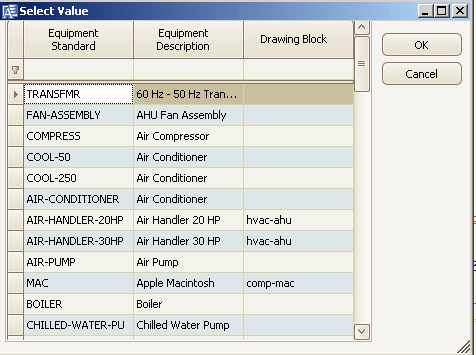
The drawing programs offer another asset symbol creation method: asset inserting. With asset inserting, you tell the program the type of item you want to add to the drawing (such as a computer, printer, or air pump) by choosing one of the existing standards from the Select Values dialog; the program then adds the appropriate block to your drawing.
Next, you then click the ARCHIBUS/Asset/Edit Data command to assign the inserted item a primary key and link it to a record in an asset table.
Asset inserting guarantees that all items conform to the established conventions and that all assets are assigned standard values—values that provide important additional information about the item and are stored in a standards table, such as Furniture Standards, Room Standards, or Equipment Standards. For example, asset insert a chair and all of its information from the Furniture Standards table—its price, manufacturer, weight, and product line—is immediately available to the asset symbol.
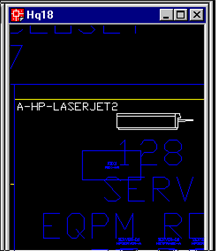
Since the ARCHIBUS/Asset Graphic/Insert Asset command uses the standards table to add blocks to the drawing, the drawing programs know the standard and can display it as asset text, as per the printed asset symbol below.
Note: There are many ways of working with the Insert Asset command and defining your standards in the standards tables. For complete information on this command, see the Insert Asset command and Completing Standards Tables for Use with Asset Symbols.
To asset insert an equipment item
The following outlines how to asset insert an equipment item. You can follow a similar procedure for asset inserting other types of assets:
This command presents a list of the records in the Equipment Standards
table, such as printers, computers, and copiers. Select a standard, such
as A-HP-LASERJET2 or AIR-HANDLER-20HP.
You are prompted at that command line to 'Select Point'
Pick a point in the drawing for the initial location
User is then prompted with 'Angle'
On the drawing, the command prompts you for a location for the block. Pick a point in the drawing for the initial location.The command prompts you for an angle.
Supply this information, and the command adds the block to the Equipment prototype layer and shows the standard, such as A-HP-LASERJET2, as asset text.
When you work with the Edit Data dialog, you will notice that the drawing
program has completed the Equipment Standard field.