The Manage Buildings/Structures/Land tasks include a geospatially-enabled map view that merges your ARCHIBUS data with ESRI maps, resulting in maps that show your ARCHIBUS information laid over dynamic views of streets, satellite images, topography, and a rich variety of other geographic data. To view the map, you must have an ESRI ArcWeb Services subscription.
You select the type of map by clicking the Base Map button at the top of the map.
By default, the World Imagery and Street Hybrid map is shown, but you can select to view other types of maps, including topographic maps or a light gray canvas.
You select the portfolio items to view on the map. For the selected items, you can view:
The following sections provide more details:
An item requires latitude and longitude to be placed on the map. If the latitude and longitude information are missing, use the Globe button at the top of the map to automatically calculate the latitude and longitude. If an item has not been geocoded (that is, it has not had its latitude and longitude calculated), when shown in selection lists, it has the following icon to indicate this.

The map view uses the complete street address entered in the Address 1 field (such as 18 Tremont Street), the City Code, and the State Code entered for a portfolio item to calculate the latitude and longitude used to place the item on the map. When entering data for any item that will be placed on the map, you will get better results by entering full words rather than abbreviations. For example, enter "Street", not "St."
To calculate the latitude and longitude for the item:

The selection list refreshes, and the icon indicating that the calculation has not been done is removed.
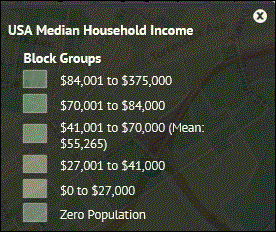
You can show data on the map, such as median household income, population density or other demographic data.
To show data layers on the map:

When you select a layer, the map refreshes and color-codes the map by the data you selected.

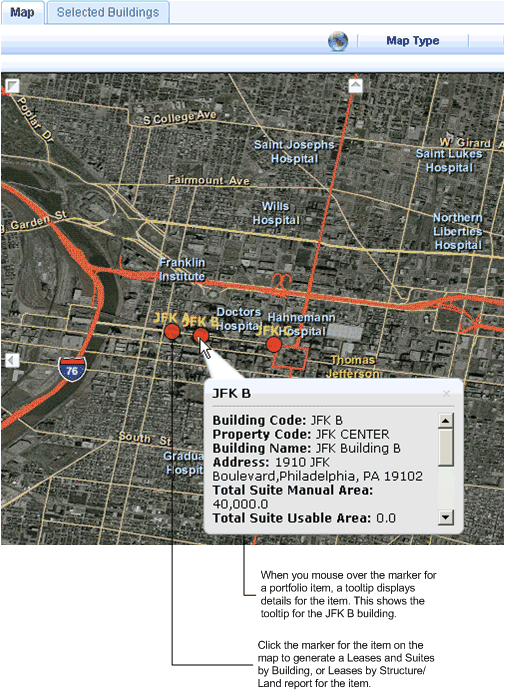
When you select items to show on the map , you can mouse over the marker for the item to view a tooltip that shows identifying information, total areas (both manually entered and areas derived from CAD drawings), total leased out area (only for buildings), and the number of associated leases and costs.
You can also generate a Leases and Suites by Building report, or Leases by Structures or Land report for an individual portfolio item by clicking on the circle that is the marker on the map for that item.
The following image shows the Map view with tooltips for the Buildings Dashboard.
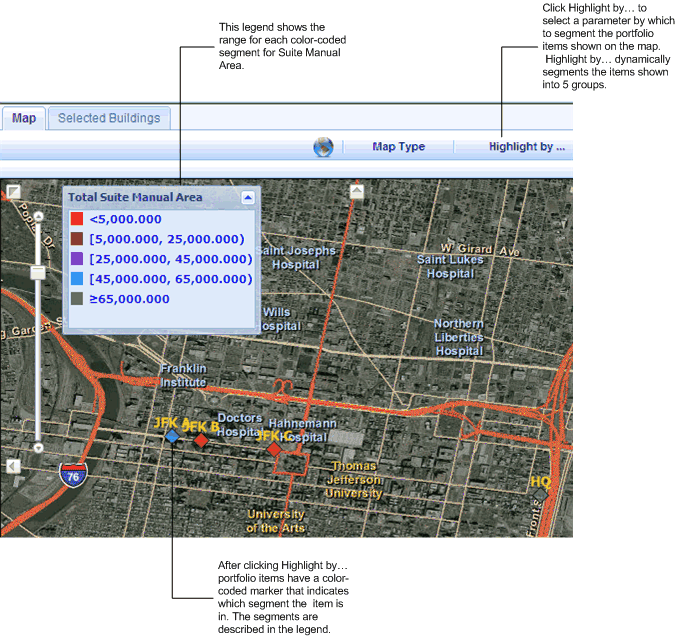
The Map view can show highlights that color-code the portfolio items you select into five dynamically-generated segments based on area, market value, book value, or purchasing cost:
To generate highlights:
The Highlight by... pop-up window appears.
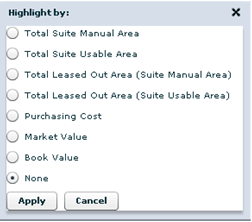
Total Suite Manual Area (only for buildings)
Total Suite Usable Area (only for buildings)
Total Manual Area (only for structures or land)
Total CAD Area (only for structures or land)
Purchasing Cost
Market Value
Book Value
The following screen shot shows the map with highlighted portfolio items.