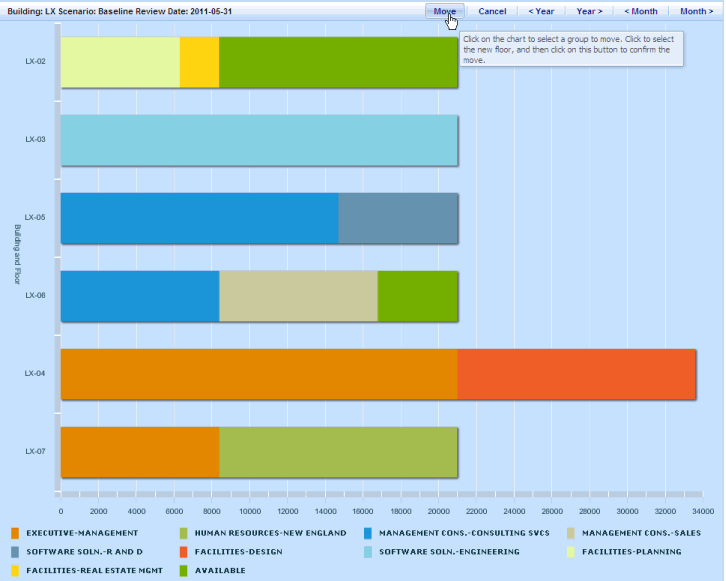
As you allocate space in a building, you can click on the Stack Chart tab to visualize your work. You must select a Review Date from the Allocate Groups tab to access the Stack Chart tab.
From the Stack Chart tab, you can:
The title of the chart always reflects the Building, Scenario. and Review Date that you are working with. You can use the <Year, Year>, <Month, Month> buttons to add a year or a month to the Review Date. See Selecting Review Dates.
The below image shows the Stack Chart tab with the tool tip instruction for the Move button.
To move a group from one floor to another:
The title of the Move button changes to Select a Floor for (the name of your selected group).
The title of the button now says Confirm Move of (selected group name from floor to floor).
The chart refreshes to reflect the new layout.
Note: The Move Group action enables you to quickly rearrange your group area allocations and to visualize the results. To facilitate testing different layouts, you can move a group to any floor, even if the floor currently does not have enough space for the group.
Note: During the Move action, you can use the Cancel button to reset the Move button so that you can start again.
From the Stack Chart tab, you can select any tab.
See Also